Is iCloud Backup Enough for iPhone Users?
If you own an iPhone, chances are you’ve either turned on iCloud Backup and forgotten about it, or you’ve wondered whether relying on it alone is really enough to keep your photos, messages, and important data safe. It’s a fair question — losing years of photos or contacts because of a lost, stolen, or damaged phone is the kind of thing you only think about after it’s too late.
The short answer is that iCloud Backup is a solid, reliable safety net for most everyday users, but whether it’s truly “enough” depends on your storage needs, how much you value redundancy, and what kind of data you’re trying to protect. Let’s break down what iCloud Backup actually covers, its limitations, and whether you should pair it with additional backup methods.
What iCloud Backup Actually Does
When enabled, iCloud Backup automatically creates a backup of your iPhone once a day, as long as your phone is locked, connected to Wi-Fi, and plugged into power. This backup typically includes:
- App data and settings
- Photos and videos (if not already using iCloud Photos separately)
- Device settings and home screen layout
- Messages (iMessage and SMS/MMS)
- Ringtones
- Health data
- Purchase history from Apple services
This automated, “set it and forget it” nature is one of iCloud Backup’s biggest strengths — most users don’t need to do anything manually once it’s set up correctly.
What iCloud Backup Does Not Fully Cover
While iCloud Backup is comprehensive, it isn’t a complete, all-encompassing solution. A few notable gaps include:
Limited Free Storage
Apple provides just 5GB of free iCloud storage, which fills up quickly for most users once photos, videos, and app data are included. Once you hit that limit, backups stop working until you either free up space or pay for additional iCloud storage.
Data From Some Third-Party Apps
Not all apps back up their data to iCloud by default. Some apps store data locally or use their own separate cloud backup systems, meaning iCloud Backup alone might miss certain app-specific content.
Face ID and Touch ID Data
Biometric data like Face ID and fingerprint information is never backed up, for security reasons. You’ll need to re-enroll these after restoring a new or reset device.
Apple Pay and Certain Health Records
Some sensitive data, such as saved Apple Pay cards and specific health records, requires manual re-setup after a restore, even with a complete iCloud Backup.
Backup Timing Gaps
Since backups typically only run once every 24 hours (and only under the right conditions of power, Wi-Fi, and being locked), any data created or changed since your last backup could be lost if something happens to your phone before the next backup cycle completes.
iCloud Backup vs. Other Backup Methods
To understand whether iCloud alone is “enough,” it helps to compare it against the alternatives available to iPhone users.
| Backup Method | Pros | Cons |
|---|---|---|
| iCloud Backup | Automatic, wireless, easy to restore | Limited free storage, requires Wi-Fi and daily conditions |
| iCloud Photos (separate from device backup) | Keeps photos updated in real time across devices | Counts against the same iCloud storage limit |
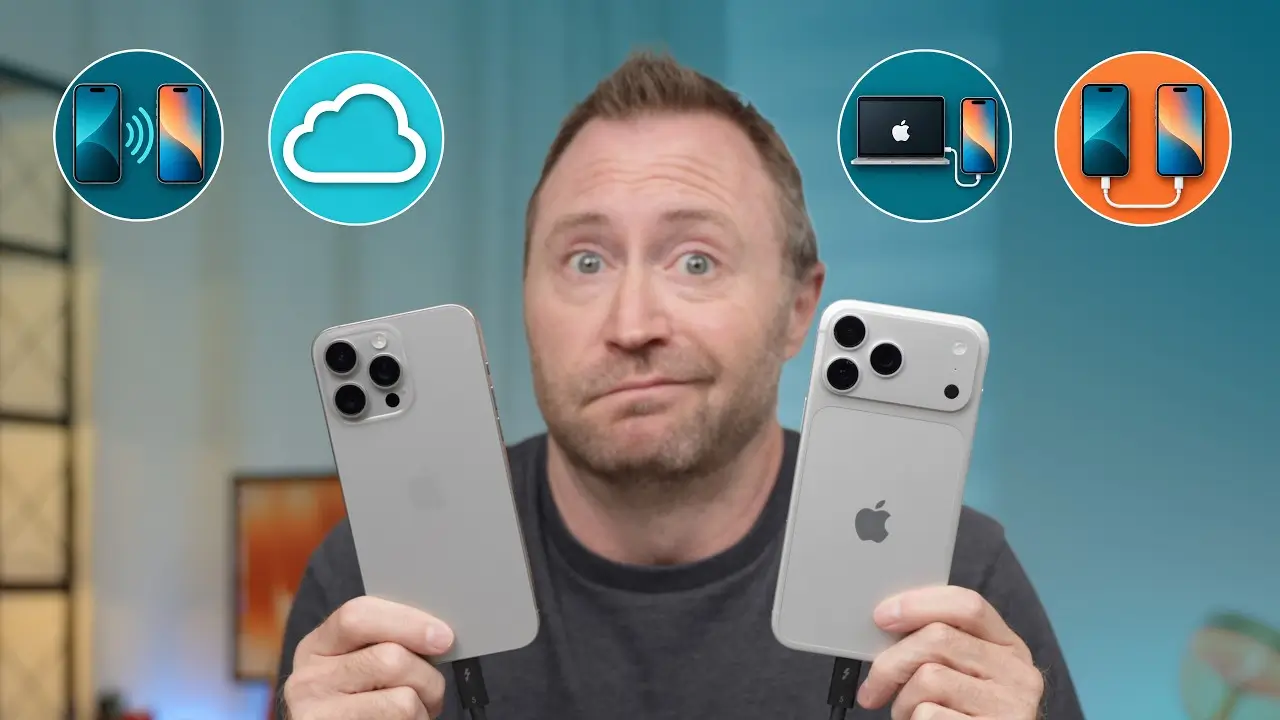
| Finder/iTunes Backup (computer) | No storage limit beyond your computer’s hard drive, can be encrypted | Requires manually connecting your phone; not automatic |
| Third-party cloud services (Google Photos, Dropbox, etc.) | Extra redundancy, sometimes more free storage for photos specifically | Doesn’t back up full system/device settings |
Many people don’t realize that a computer-based backup through Finder (or iTunes on older systems) has no cloud storage limit and can even be more complete, since it captures a full local encrypted backup of your device without needing extra iCloud storage.
Is iCloud Backup Alone “Enough”?
For most casual users — people who mainly use their phone for messaging, browsing, and taking everyday photos — iCloud Backup alone is usually sufficient, provided you have enough storage space to actually complete the backups.
However, there are scenarios where relying on iCloud Backup alone is riskier:
- You take a large volume of photos or videos and don’t want to pay for increasing amounts of iCloud storage.
- You store highly important documents or work files on your phone that you can’t afford to lose.
- You want a backup that doesn’t depend on having Wi-Fi access daily or your phone remaining locked overnight.
- You want an extra layer of redundancy in case of an Apple account issue, such as being temporarily locked out of your Apple ID.
If any of these apply to you, pairing iCloud Backup with a secondary backup method offers meaningful extra protection. For a deeper breakdown of different backup strategies for various types of users, apkmunna has a helpful guide comparing cloud versus local backup approaches.
How to Check and Improve Your iCloud Backup Setup
Check When Your Last Backup Happened
Go to Settings > [Your Name] > iCloud > iCloud Backup, where you’ll see the date and time of your most recent successful backup.
Free Up iCloud Storage
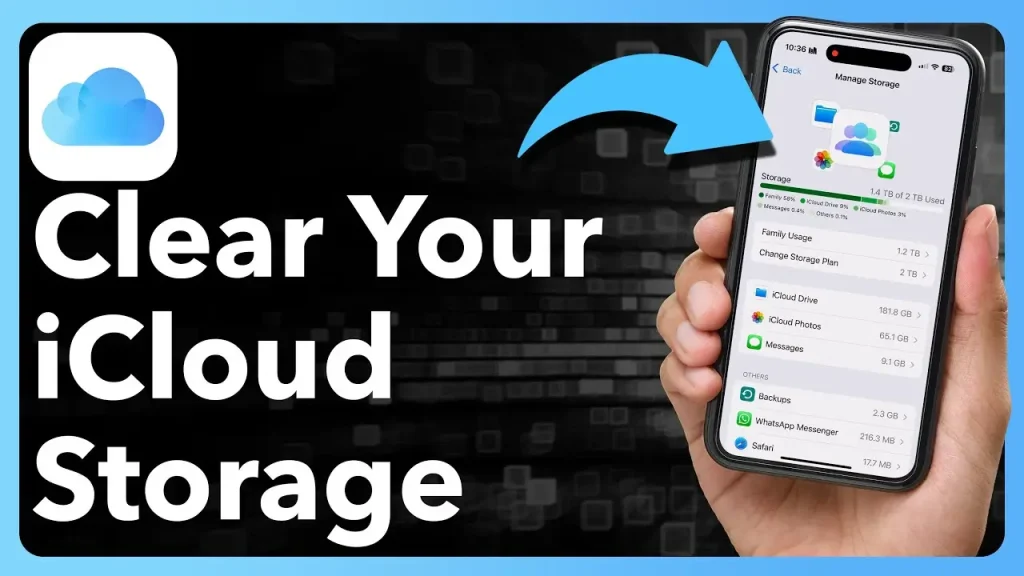
Under Settings > [Your Name] > iCloud > Manage Account Storage, you can see what’s taking up space and delete old backups from devices you no longer use.
Consider Upgrading Your iCloud Plan
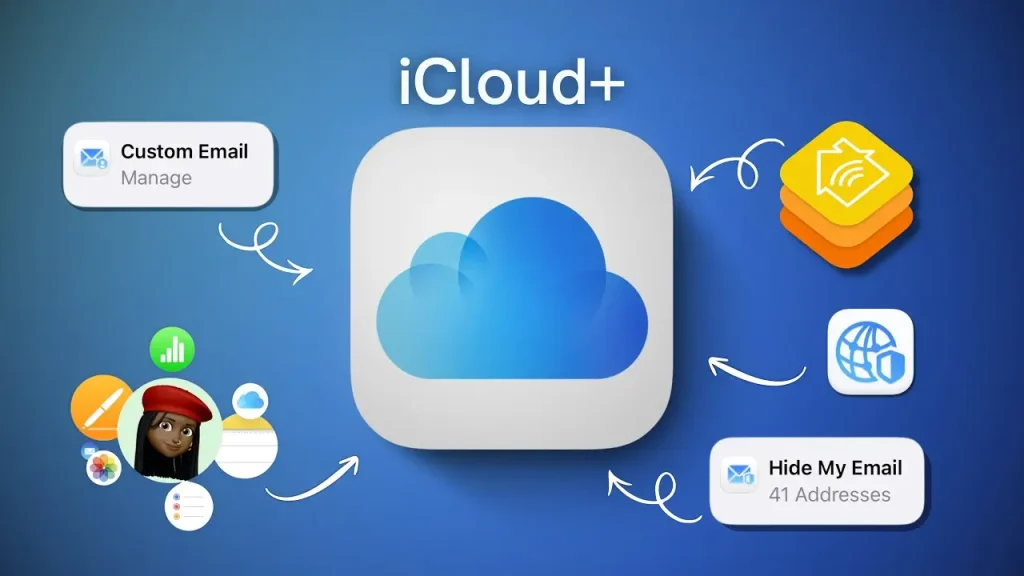
Apple offers paid iCloud+ storage tiers starting at a relatively low monthly cost, which can be worthwhile if you frequently run out of free storage and want backups to run consistently.
Add a Local Backup for Extra Redundancy
Periodically connecting your iPhone to a computer and creating a Finder/iTunes backup — ideally an encrypted one, which also saves stored passwords and health data — gives you an additional, storage-unlimited copy of your device.
Use iCloud Photos Separately for Real-Time Syncing
Since photos are often the most irreplaceable files people worry about, enabling iCloud Photos ensures they sync continuously, rather than only being captured during the once-daily device backup.
If you’re setting this up for the first time, apkmunna also walks through step-by-step instructions for optimizing iCloud storage settings, which can help you avoid running out of space unexpectedly.
What Happens If You Don’t Back Up at All
It’s worth noting the alternative: without any backup, a lost, stolen, damaged, or factory-reset iPhone means permanently losing everything on it, with no way to recover photos, messages, contacts, or app data. Given how simple iCloud Backup is to set up, skipping backups entirely is one of the riskier habits an iPhone user can have.
Frequently Asked Questions
Does iCloud Backup happen automatically, or do I need to do it manually?
It happens automatically once enabled, as long as your iPhone is charging, connected to Wi-Fi, and locked. You can also trigger a manual backup anytime through Settings.
How much iCloud storage do I actually need?
This depends on your photo and video volume and app data size, but many users with a moderate amount of photos find that the next paid tier above the free 5GB (usually around 50GB) is sufficient for daily backups.
Is it safe to rely only on iCloud Backup without a local backup?
For most everyday users, yes. But if you have irreplaceable files, want extra redundancy, or are concerned about account access issues, adding a local encrypted backup provides meaningful extra protection.
Does iCloud Backup protect against ransomware or hacking?
iCloud Backup itself isn’t specifically designed as ransomware protection, but Apple’s account security features, like two-factor authentication, help protect against unauthorized access to your account and backups.
Can I restore an iCloud Backup to a different iPhone model?
Yes, iCloud Backups can generally be restored to a newer iPhone model, though some device-specific settings may need to be reconfigured after the restore.
Conclusion
For the average iPhone user, iCloud Backup is a genuinely reliable and convenient safety net that covers the vast majority of what matters most — photos, messages, app data, and settings — without requiring any ongoing effort once it’s set up. That said, it isn’t a flawless, all-in-one solution: limited free storage, daily backup timing gaps, and certain excluded data types mean it’s not entirely foolproof on its own.
If your phone holds truly irreplaceable files or you simply want extra peace of mind, combining iCloud Backup with an occasional local computer backup offers a stronger, more complete safety net. For more practical guides on keeping your devices and data protected, apkmunna is a useful resource to explore further.