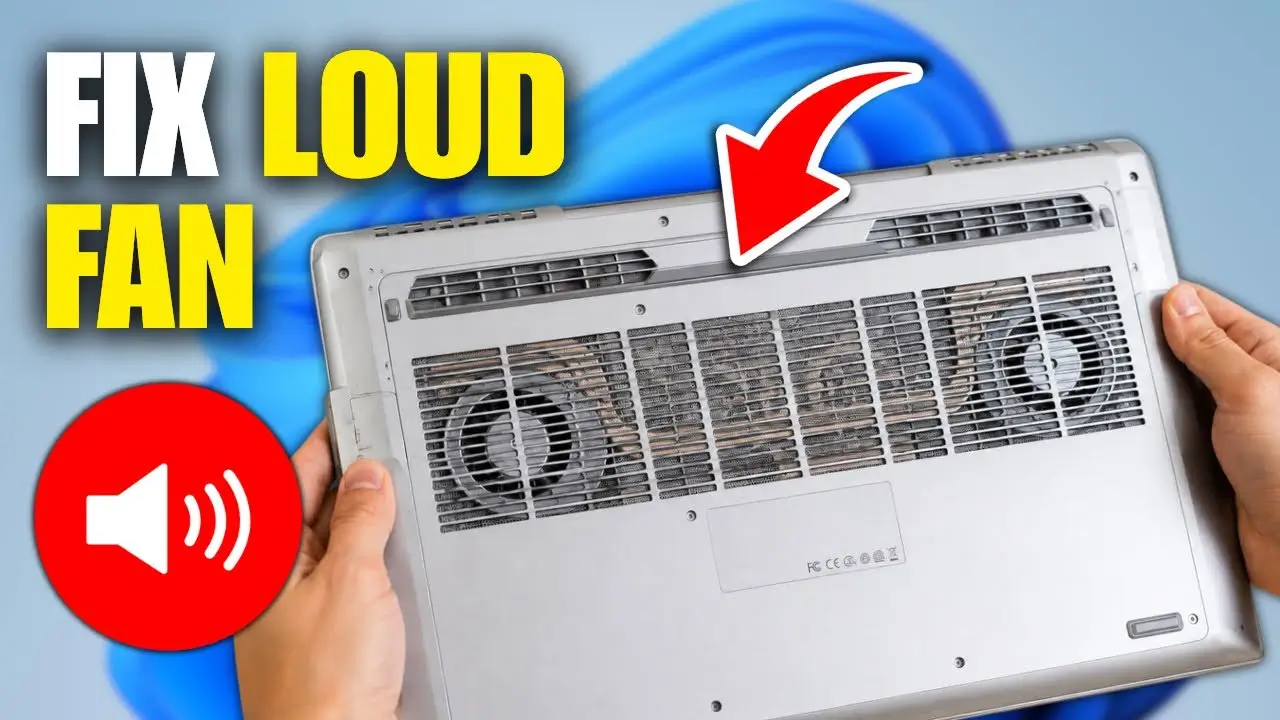
Why Is Your Laptop Fan Suddenly Loud?
You’re working quietly, and then out of nowhere, your laptop fan kicks into high gear — sounding more like a small aircraft taking off than a computer helping you check email. If this has started happening more often lately, you’re probably wondering whether it’s something to worry about or just normal wear and tear.
The good news is that a loud laptop fan is almost always your computer trying to tell you something useful: it’s working harder than usual, running hotter than it should, or struggling to move air efficiently. In this guide, we’ll walk through the most common reasons your fan suddenly gets loud, how to diagnose the cause, and what you can do to fix it.
Why Laptop Fans Get Loud in the First Place
Laptop fans exist to pull heat away from internal components — mainly the CPU and GPU — and push it out of the case. When your laptop’s internal temperature rises, the fan spins faster to compensate. A louder fan simply means your laptop needs more airflow than usual to stay cool.
The key question isn’t just “why is my fan loud,” but “why is my laptop suddenly generating more heat or struggling to dissipate it.” That’s usually caused by one of a few common issues.
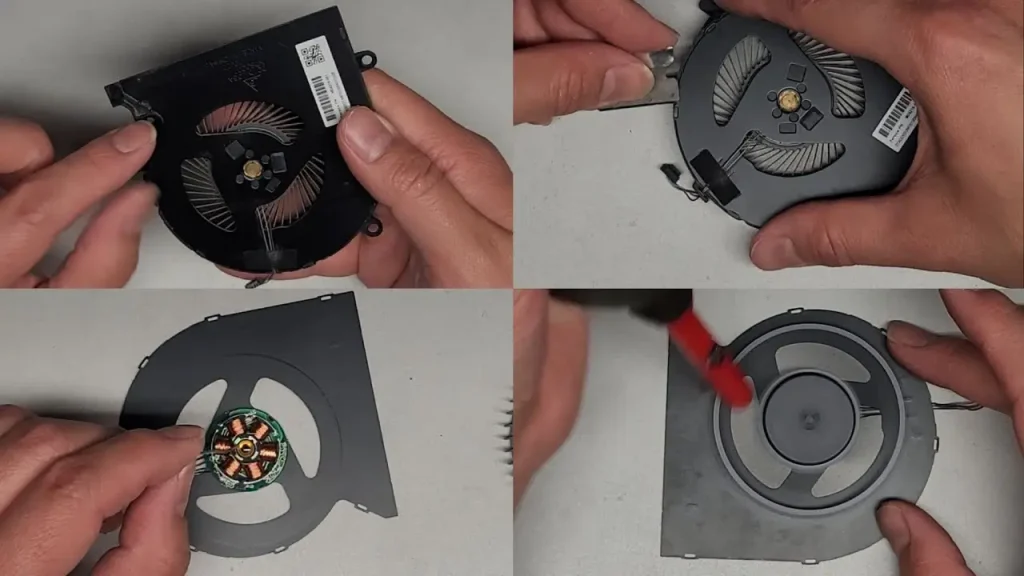
Common Reasons Your Laptop Fan Is Suddenly Loud
1. Dust Buildup Inside the Vents
Over time, dust, hair, and debris accumulate inside a laptop’s air vents and around the fan blades. This buildup restricts airflow, forcing the fan to spin faster and louder to move the same amount of air. This is one of the most common causes of a laptop becoming noisier over months or years of use.
2. Blocked or Obstructed Vents
Using your laptop on soft surfaces like a bed, couch, or blanket can block the intake or exhaust vents entirely. Without proper airflow, heat builds up quickly, and the fan works overtime trying to compensate.
3. Too Many Background Processes
If multiple apps, browser tabs, or background processes are running simultaneously, your CPU has to work harder, generating more heat. This is especially common right after installing updates, when antivirus scans are running, or when several heavy applications are open at once.
4. Outdated or Buggy Software
Sometimes a single misbehaving app or a background update process can spike CPU usage far beyond what’s normal, even when you’re not actively doing anything demanding. This can cause the fan to ramp up seemingly out of nowhere.
5. Aging Thermal Paste
Laptops use a thin layer of thermal paste between the CPU/GPU and the heatsink to help transfer heat efficiently. Over a few years, this paste can dry out and become less effective, causing components to run hotter than they used to — even under the same workload.
6. Fan Hardware Wear or Failure
Fans have moving parts, and like any mechanical component, they can wear down over time. A grinding, rattling, or high-pitched sound (rather than just a whooshing noise) often points to a fan bearing issue rather than a heat management problem.
7. Demanding Applications or Multitasking
Video editing, gaming, running virtual machines, or handling large spreadsheets and design files all place higher demands on your CPU and GPU. It’s completely normal for the fan to get louder during these tasks — this isn’t a malfunction, just your laptop working as intended under load.
How to Diagnose What’s Causing the Noise
Before jumping to fixes, it helps to narrow down the cause:
- Check when it happens. Does the fan get loud only during specific tasks (gaming, video calls, exporting files), or does it happen even when the laptop is idle? Idle-time loudness usually points to background processes or a hardware issue rather than normal workload.
- Open your Task Manager (Windows) or Activity Monitor (Mac). Look for any single process using an unusually high percentage of CPU, especially if you’re not actively using that application.
- Feel the laptop’s exterior. If the bottom or the area near the vents feels unusually hot, heat buildup is likely a major factor.
- Listen closely to the sound itself. A steady whooshing noise is typically airflow-related, while grinding, clicking, or rattling suggests a mechanical fan issue.
If you enjoy troubleshooting your own devices, you can find more guides like this on apkmunna, which covers similar step-by-step explanations for common tech issues.
How to Fix a Loud Laptop Fan
Clean the Vents and Fan
Using a can of compressed air, gently blow out dust from the vents while the laptop is powered off. For a more thorough clean, some laptops allow you to remove a back panel to access the fan directly — though this varies by model, so it’s worth checking your laptop’s specific guidelines before opening it up.
Use the Laptop on a Hard, Flat Surface
Avoid beds, couches, or pillows. A hard surface, or a laptop stand with ventilation, allows air to flow freely into the intake vents.
Close Unnecessary Background Applications
Check your Task Manager or Activity Monitor and close apps or browser tabs you’re not actively using, especially ones consuming a disproportionate share of CPU resources.
Update Your Software and Drivers
Outdated operating systems, drivers, or apps can sometimes cause unnecessary CPU spikes. Keeping your system updated can resolve unexpected performance and heat issues.
Use a Cooling Pad
An external cooling pad with its own fans can help supplement your laptop’s internal cooling, particularly useful for gaming laptops or older devices that run warm even under normal use.
Consider Professional Servicing for Thermal Paste or Fan Replacement
If your laptop is a few years old and none of the above steps help, degraded thermal paste or a worn-out fan may be the culprit. This typically requires opening the laptop, which is best handled by a professional if you’re not comfortable doing it yourself — especially since it can void warranties on newer devices.
If you’re unsure whether a repair is worth attempting yourself, resources like apkmunna often break down which laptop fixes are DIY-friendly and which ones are better left to a technician.
When You Should Be Concerned
A loud fan by itself isn’t usually dangerous, but you should pay closer attention if you notice:
- The laptop shutting down unexpectedly due to overheating
- A burning smell or visible discoloration near the vents
- The fan running loudly even when the laptop is completely idle and no background processes are active
- Grinding or rattling noises that persist even after cleaning
These signs suggest a hardware issue that’s worth having checked by a professional rather than something you should ignore.
Quick Reference: Cause vs. Fix
| Cause | Likely Fix |
|---|---|
| Dust buildup | Clean vents with compressed air |
| Blocked vents | Use on a hard surface or cooling pad |
| Too many background apps | Close unused apps, check Task Manager |
| Outdated software | Update OS, drivers, and applications |
| Dried thermal paste | Professional repaste service |
| Worn fan bearings | Fan replacement |
| Heavy workload (gaming, editing) | Normal behavior; use a cooling pad if needed |
Frequently Asked Questions
Is it normal for a laptop fan to get loud sometimes?
Yes. It’s completely normal for the fan to spin faster during demanding tasks like gaming, video editing, or running multiple applications at once. The concern is when it happens during light or idle use.
Can dust really make that much of a difference?
Yes. Dust buildup is one of the most common reasons laptops become louder over time, since it restricts airflow and forces the fan to work harder to compensate.
Should I clean my laptop fan myself?
Light cleaning with compressed air through the vents is generally safe. Opening the laptop to access the fan directly depends on your comfort level and the specific model — some laptops make this easier than others.
Can a loud fan mean my laptop is about to fail?
Not necessarily, but grinding or rattling noises, frequent overheating shutdowns, or a fan running loudly even at idle are worth investigating sooner rather than later to avoid potential hardware damage.
Does closing background apps really help with fan noise?
Yes. Reducing CPU usage by closing unnecessary apps lowers heat generation, which in turn reduces how hard the fan needs to work.
Conclusion
A suddenly loud laptop fan is usually your computer’s way of telling you it needs a little maintenance — whether that’s clearing out dust, freeing up background resources, or improving airflow around the vents. In most cases, the fix is simple and doesn’t require professional help. However, persistent noise, unusual sounds, or overheating during light use are signs worth addressing before they turn into bigger hardware problems.
By keeping your laptop clean, monitoring background processes, and paying attention to unusual sounds, you can keep your fan — and your laptop — running smoothly for years. And if you want more practical, easy-to-follow tech troubleshooting guides like this one, apkmunna is a good place to explore next.