Does Restarting a TP-Link Router Improve Speed?
If your internet has been feeling sluggish lately, you’ve probably heard the classic advice: “just restart your router.” It sounds almost too simple to actually work, but if you own a TP-Link router and your Wi-Fi has slowed down, unplugging it and plugging it back in might genuinely help — and there’s real technical reasoning behind why.
Let’s look at what actually happens when you restart a TP-Link router, when it helps, when it doesn’t, and what else might be affecting your speed if a restart doesn’t solve the problem.
Why Restarting a Router Can Improve Speed
A router isn’t just a simple on/off device — it’s a small computer running its own operating system (firmware), managing multiple connected devices, handling network traffic, and maintaining a connection to your internet service provider (ISP). Like any device that runs continuously for weeks or months, it can accumulate issues that a fresh restart clears out.
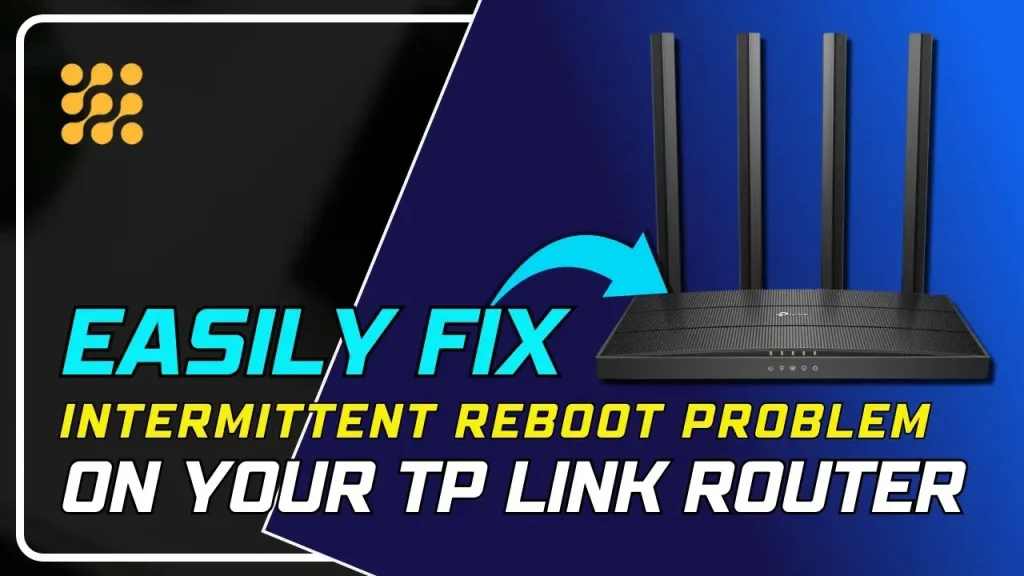
Here’s what a restart typically fixes:
1. Clears Temporary Memory (RAM) Buildup
Routers have limited memory, and over time, background processes, connection logs, and cached data can build up. This is sometimes referred to as “memory leak” behavior, where small amounts of memory get used up and never fully released. A restart clears this out completely, often resulting in smoother performance immediately afterward.
2. Resolves Overheating Issues
Routers generate heat as they run, especially in enclosed spaces like a shelf or cabinet. Extended heat exposure can cause performance to degrade slightly. Powering off the router for a minute allows it to cool down before restarting.
3. Refreshes Your IP Address
Many ISPs assign your router a dynamic IP address that can occasionally develop connectivity issues at the ISP’s end. Restarting your router forces it to request a new IP address, which can resolve certain connectivity slowdowns tied to your provider’s network.
4. Clears Congested Connections
If many devices have been connected over a long period, especially devices that connect and disconnect frequently (like smart home gadgets), the router’s connection table can become cluttered. A restart resets this, allowing devices to reconnect cleanly.
5. Applies Pending Firmware or Configuration Changes
Some settings changes or firmware updates on TP-Link routers only fully take effect after a restart, meaning your router could be running on outdated internal configurations until it’s rebooted.
When a Restart Won’t Help
While restarting solves many temporary issues, it isn’t a fix for everything. A reboot is unlikely to help if:
- Your internet plan itself is too slow for how many devices or how much bandwidth you’re using.
- Your ISP is experiencing an outage or throttling in your area.
- Your router is outdated or underpowered for your home’s size or number of connected devices.
- Physical placement is the issue — thick walls, distance from the router, or interference from other electronics can limit speed no matter how many times you restart.
- Too many devices are connected simultaneously, especially bandwidth-heavy ones like 4K streaming devices or gaming consoles.
If restarting temporarily helps but the slowdown returns quickly, it usually points to one of these underlying issues rather than something a reboot alone can permanently solve.

How to Properly Restart a TP-Link Router
There are two common ways to restart a TP-Link router, and each serves a slightly different purpose:
Soft Restart (Using the Router’s Software)
- Open a web browser and log into your router’s admin panel (usually via the TP-Link Tether app or a browser address like the one printed on your router’s label).
- Navigate to the System Tools or Reboot section.
- Select Reboot and wait for the router to restart, usually within a minute or two.
Hard Restart (Power Cycle)
- Unplug the router’s power cable directly from the outlet or the router itself.
- Wait at least 30 seconds to allow internal components and memory to fully clear.
- Plug it back in and wait for all indicator lights to stabilize, which typically takes one to two minutes.
A hard restart (power cycle) is generally more effective than a soft reboot, since it fully cuts power rather than just restarting the software layer.
If you’re new to managing your home network settings, apkmunna has beginner-friendly walkthroughs for accessing router admin panels and adjusting basic settings safely.
How Often Should You Restart Your Router?
There’s no strict rule, but many networking guides suggest:
- Restarting every few weeks to once a month as routine maintenance, even if you haven’t noticed any issues.
- Restarting immediately if you notice slow speeds, dropped connections, or devices failing to connect.
- Setting up an automatic reboot schedule, a feature available on many TP-Link routers, which restarts the router automatically at a set time (like 3 a.m.) to avoid disrupting your usage.
Enabling scheduled reboots is often the most convenient solution, since it keeps your router running smoothly without you needing to remember to do it manually.
Other Ways to Improve TP-Link Router Speed
If restarting only provides a temporary or partial improvement, consider these additional steps:
Update the Firmware
TP-Link periodically releases firmware updates that fix bugs, improve stability, and sometimes boost performance. This can be done through the Tether app or the router’s web interface.
Reposition the Router
Placing your router in a central, elevated, and open location — away from walls, metal objects, and other electronics — can significantly improve signal strength and speed throughout your home.
Reduce Connected Devices or Prioritize Bandwidth
Most TP-Link routers include a QoS (Quality of Service) setting that lets you prioritize bandwidth for specific devices or activities, such as video calls or gaming, over less time-sensitive background tasks.
Switch Wi-Fi Bands
If your router supports dual-band (2.4GHz and 5GHz), connecting closer devices to the 5GHz band typically offers faster speeds, while the 2.4GHz band offers better range for devices farther away.
Check for Interference
Other electronics like microwaves, cordless phones, and even neighboring Wi-Fi networks can interfere with your signal. Changing your Wi-Fi channel in the router settings can sometimes resolve this.
For step-by-step instructions on optimizing specific TP-Link settings, apkmunna offers dedicated guides that go deeper into router configuration for different models.
Quick Reference: Restart Benefits vs. Limitations
| What a Restart Can Fix | What a Restart Can’t Fix |
|---|---|
| Memory buildup slowing performance | Slow internet plan/bandwidth limits |
| Temporary IP address issues | ISP outages or throttling |
| Overheating-related slowdowns | Outdated or underpowered hardware |
| Cluttered device connection tables | Poor router placement or interference |
| Unapplied firmware/config changes | Too many devices for your plan’s capacity |
Frequently Asked Questions
How long should I leave my TP-Link router unplugged before restarting it?
At least 30 seconds is generally recommended to allow internal memory and components to fully reset before powering back on.
Will restarting my router delete my Wi-Fi settings?
No. A standard restart or power cycle doesn’t erase your saved settings, Wi-Fi name, or password. Only a factory reset (usually done by holding a dedicated reset button) clears your configuration.
Can I restart my TP-Link router remotely?
Yes, most modern TP-Link routers allow remote reboots through the Tether app, as long as you’re logged into your account and the router is connected to the internet.
Does restarting the router fix slow speeds on just one device?
Not always. If only one device is slow while others work fine, the issue is more likely related to that specific device’s Wi-Fi settings, drivers, or distance from the router rather than the router itself.
Is a scheduled automatic reboot a good idea?
Yes, many users find it helpful as a simple form of routine maintenance, especially for routers that run continuously without ever being manually restarted.
Conclusion
Restarting a TP-Link router can genuinely improve speed, particularly when the slowdown is caused by memory buildup, temporary IP issues, overheating, or outdated configurations. It’s a simple, low-effort first step worth trying whenever your internet feels slower than usual.
That said, a restart isn’t a permanent fix for everything. If slow speeds keep returning shortly after each reboot, it’s worth looking into your router’s placement, firmware, connected device load, or your internet plan itself. Combining regular restarts with a few of the optimization tips above will generally give you the most consistent, reliable speeds over time. For more practical router and home network guides like this one, apkmunna is a helpful next stop.