How Does Windows Manage Hardware?
Every time you plug in a USB drive, connect a printer, or add a new monitor to your laptop, Windows quietly handles a surprising amount of behind-the-scenes work to make that device actually function. You rarely think about it because it usually just works, but the process of recognizing, configuring, and communicating with hardware involves several coordinated systems working together inside your operating system.
Let’s break down exactly how Windows manages hardware, from the moment you plug something in to how your applications are able to use it without needing to understand the technical details themselves.
Why Hardware Management Is More Complex Than It Looks
Every piece of hardware, whether it’s a keyboard, graphics card, printer, or webcam, communicates differently at a technical level. Windows has to act as a translator and coordinator between countless different hardware manufacturers, each with their own specific technical requirements, and the software you actually use daily, which shouldn’t need to understand any of those specific technical details itself.
This is accomplished through a layered system involving drivers, the Windows kernel, and several supporting components that work together to make hardware “just work” from a user’s perspective.
What Device Drivers Actually Do
The Bridge Between Hardware and Software
A driver is a specialized piece of software that allows Windows to communicate with a specific piece of hardware. Since every device (a graphics card, a mouse, a network adapter) has its own specific way of receiving instructions and sending data, drivers translate generic operating system commands into the exact technical language that specific piece of hardware understands.
Why You Rarely Need to Manually Install Drivers Today
Windows includes a massive built-in driver database and can automatically download additional drivers through Windows Update when it detects new hardware. This is why plugging in many devices today results in near-instant recognition and functionality, compared to older systems where manual driver installation was often required for even basic devices.
Generic vs. Manufacturer-Specific Drivers
For many devices, Windows uses generic, built-in drivers that provide basic functionality immediately upon connection. However, manufacturer-specific drivers, often available through Windows Update or the manufacturer’s own website, can unlock additional features, better performance, or more specific configuration options beyond this baseline functionality.
The Role of the Windows Kernel
At the core of Windows sits the kernel, the central part of the operating system responsible for managing communication between hardware and every piece of software running on your system. The kernel handles several critical hardware-related responsibilities:
Resource Allocation
The kernel manages how system resources, like memory and processing power, are allocated to different hardware components and the drivers controlling them, ensuring multiple devices can operate simultaneously without conflicting with each other.
Interrupt Handling
Hardware devices communicate with the CPU through signals called interrupts, essentially a way of saying “I need attention right now.” The kernel manages these interrupt requests, deciding how and when the CPU should respond to hardware needing immediate processing time.
Device Isolation and Security
Modern Windows versions isolate hardware communication at the kernel level specifically to prevent a malfunctioning or malicious driver from easily crashing the entire system or accessing data it shouldn’t have permission to access.
How Windows Detects New Hardware: Plug and Play
The seamless experience of plugging in a new device and having it work almost instantly is largely thanks to a system called Plug and Play (PnP). Here’s roughly how it works:
- Physical connection detected: Windows detects that a new device has been physically connected, whether through USB, Bluetooth, or another connection method.
- Hardware identification: The device communicates specific identifying information back to Windows, including its manufacturer and device type.
- Driver matching: Windows checks whether it already has a suitable driver built in, or attempts to automatically download an appropriate one through Windows Update.
- Resource assignment: The system assigns necessary resources to the device, ensuring it doesn’t conflict with other connected hardware.
- Device becomes available: Once properly configured, the device becomes available for use by applications, often within just a few seconds of connection.
This entire process happens automatically for the vast majority of common devices, which is why most people never think about “installing” hardware the way earlier computer users often had to.
Device Manager: Where You Can See This System in Action
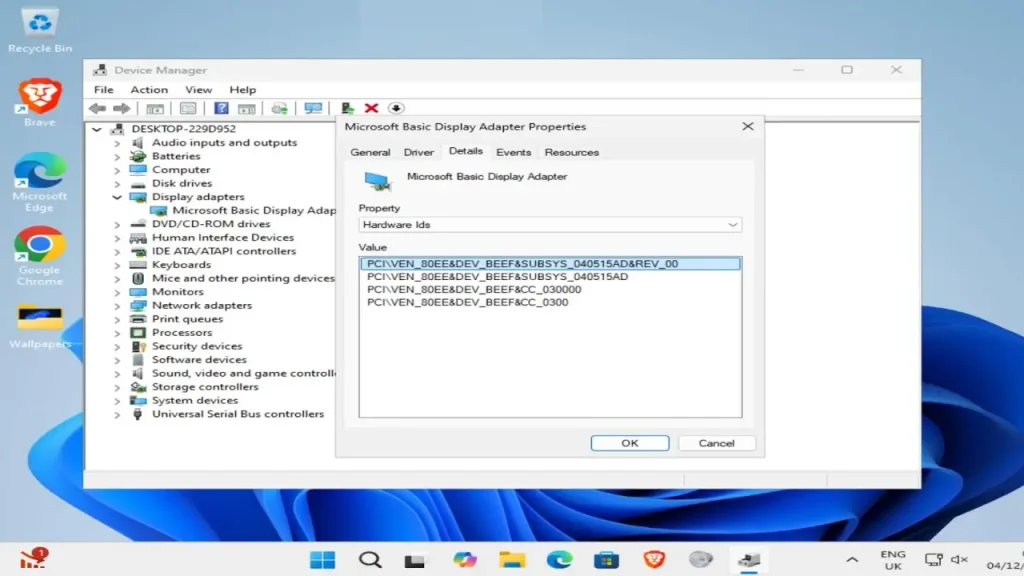
Windows includes a built-in tool called Device Manager, accessible by searching for it in the Start menu, which provides a direct look into how Windows currently sees and manages your connected hardware. Within Device Manager, you can:
- View all currently recognized hardware, organized by category
- Check whether a specific device is functioning correctly or experiencing a driver issue
- Manually update, roll back, or reinstall drivers for specific hardware
- Disable or enable specific devices as needed
- View technical details about a device, including its specific driver version and hardware identifiers
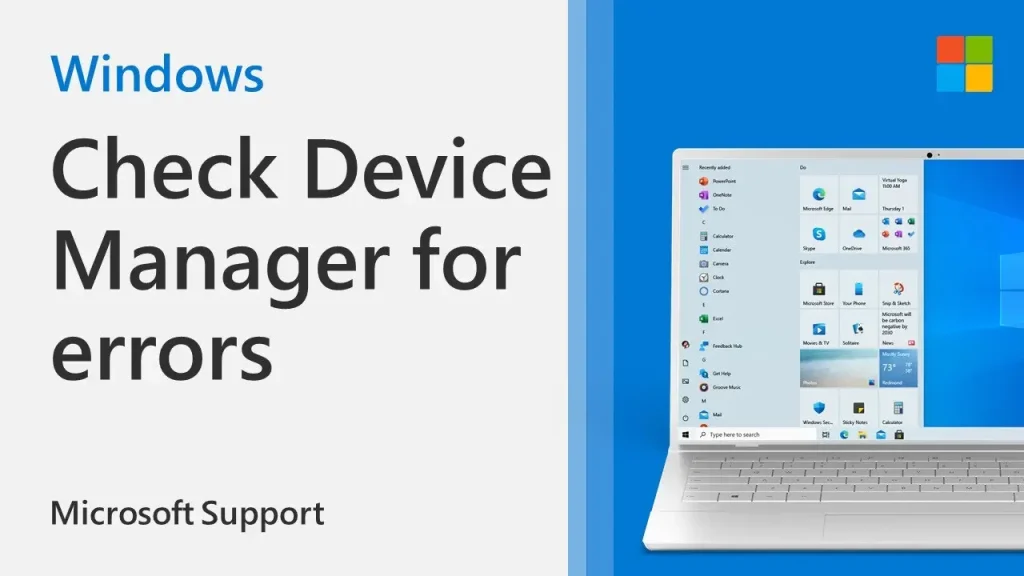
If a device shows a warning icon within Device Manager, it typically indicates a driver problem, a resource conflict, or occasionally, a genuine hardware malfunction. For a more detailed walkthrough on troubleshooting specific hardware issues through this tool, apkmunna has a dedicated guide covering common Device Manager error codes and what they actually mean.
How Windows Manages Multiple Devices Simultaneously
Since modern computers often have many devices connected and active at once — a keyboard, mouse, monitor, webcam, printer, and various internal components all working simultaneously — Windows relies on several coordinated processes to prevent conflicts:
Resource Arbitration
When multiple devices need access to limited shared resources, Windows manages this allocation to prevent devices from interfering with each other’s operation.
Driver Prioritization
Certain drivers, particularly those related to core system functions, are given higher priority to ensure critical hardware, like your storage drive or primary display, remains responsive even under heavy system load.
Power Management Coordination
Windows also manages how much power different hardware components receive, particularly relevant for laptops, balancing performance needs against battery efficiency depending on current usage and settings.
What Happens When Hardware Isn’t Recognized Properly
Sometimes a device doesn’t work as expected immediately after connecting. This typically stems from one of a few common issues:
- Missing or outdated drivers: The most common cause, often resolved through Windows Update or manually installing a driver from the manufacturer’s website
- Resource conflicts: Rare on modern systems, but occasionally two devices may compete for the same system resource
- Physical connection issues: A loose cable, faulty port, or damaged connector can sometimes appear as a software-level hardware recognition issue
- Compatibility issues: Very old or highly specialized hardware may lack proper driver support for newer Windows versions
For more specific troubleshooting steps when a device isn’t being recognized correctly, apkmunna covers common hardware detection problems and practical fixes across different Windows versions.
Windows Hardware Management: Key Components at a Glance
| Component | Primary Role |
|---|---|
| Device Drivers | Translate OS commands into hardware-specific instructions |
| Windows Kernel | Manages core communication, resources, and security between hardware and software |
| Plug and Play (PnP) | Automatically detects, configures, and enables new hardware |
| Device Manager | Provides a visible interface for monitoring and managing hardware status |
| Windows Update | Delivers updated drivers and hardware compatibility improvements over time |
Why This System Matters for Everyday Users
Understanding this process, even at a basic level, helps explain a few common everyday experiences:
- Why a brand-new device usually works immediately without needing a physical installation disc, unlike decades past
- Why occasionally updating Windows can resolve certain hardware quirks or connectivity issues
- Why Device Manager is a useful first stop when troubleshooting a device that isn’t working correctly
- Why some devices need manufacturer-specific software or drivers to unlock their full range of features, beyond basic functionality
If you’re dealing with a specific hardware issue and want more targeted troubleshooting guidance, apkmunna offers additional step-by-step walkthroughs covering common Windows hardware and driver problems.
Frequently Asked Questions
Do I need to manually install drivers for most devices?
Generally, no. Windows automatically detects and installs appropriate drivers for the vast majority of common devices, though some specialized hardware may benefit from manufacturer-specific drivers for full functionality.
What should I do if Device Manager shows a warning icon next to a device?
This typically indicates a driver issue. Right-clicking the device and selecting “Update driver,” or checking for updates through Windows Update, often resolves the problem.
Why does a device sometimes stop working after a Windows update?
Occasionally, an update can introduce compatibility issues with a specific driver. Rolling back the driver or waiting for a subsequent update that addresses the issue can often resolve this.
Can outdated drivers cause performance issues, not just device failures?
Yes. Outdated drivers, particularly for graphics cards or storage devices, can sometimes lead to reduced performance or stability issues, even if the device technically still functions.
Is Plug and Play the same across all versions of Windows?
The core concept remains consistent, though newer Windows versions have refined and sped up the process significantly compared to older systems where hardware recognition was often slower and more manual.
Conclusion
Windows manages hardware through a coordinated system of drivers, kernel-level communication, and automated detection processes like Plug and Play, all working together to make connecting and using new devices feel effortless. While most of this happens invisibly in the background, understanding the basics helps explain common troubleshooting steps, like checking Device Manager or updating drivers, when something doesn’t work quite right.
For more clear, practical explanations of how your operating system works behind the scenes, apkmunna remains a solid resource to keep exploring.