Are Google Password Manager Passwords Safe?
If you use Chrome or an Android phone, there’s a good chance Google has offered to save your passwords more than once — and you’ve probably said yes without thinking too much about it. It’s convenient, it’s built right into your browser, and it’s free. But when it comes to something as sensitive as your passwords, “convenient and free” naturally raises the question: is Google Password Manager actually safe enough to trust?
The short answer is that Google Password Manager is reasonably secure for most everyday users, backed by solid encryption and Google’s broader account security infrastructure. However, it does have some trade-offs compared to dedicated password managers, and its real-world safety depends heavily on how well you secure your Google account itself. Let’s break down how it actually works, where its strengths and limitations lie, and whether it’s the right choice for your needs.
How Google Password Manager Works
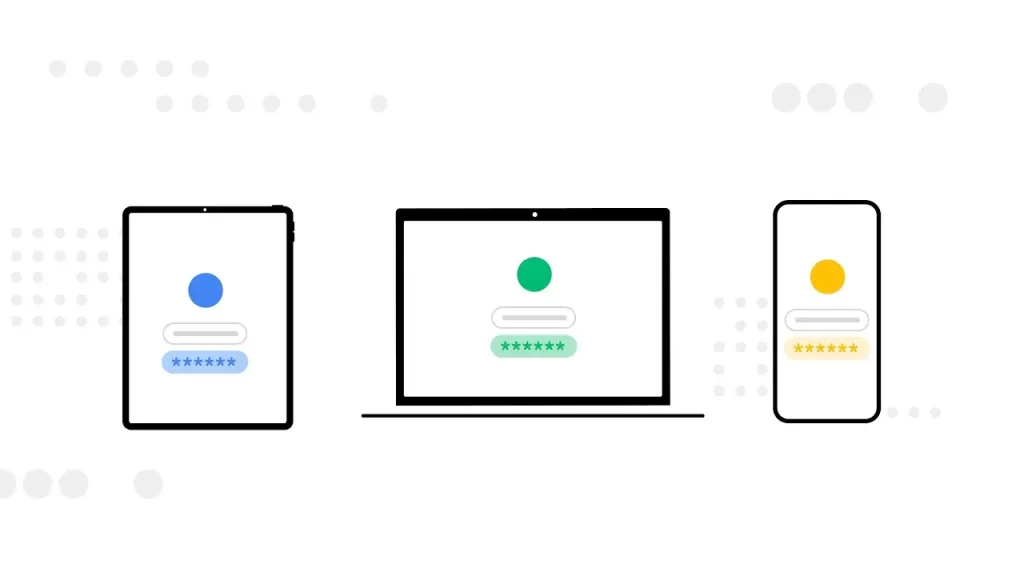
Google Password Manager stores your saved usernames and passwords, syncing them across devices where you’re signed into your Google account — Chrome on desktop, Android phones, and Chrome apps on other platforms. When you log into a website, Chrome can automatically fill in your saved credentials, and it can also generate strong, random passwords for new accounts.
Behind the scenes, your saved passwords are encrypted, both while being transmitted and while stored on Google’s servers. Google also allows you to add an extra layer of protection through account-level security features tied to your Google login itself.
The Security Features Behind Google Password Manager
Encryption
Passwords saved in Google Password Manager are encrypted, which means that even if the underlying data were somehow accessed without authorization, it would appear as unreadable, scrambled information without the correct decryption process.
Two-Factor Authentication (2FA) on Your Google Account
Since Google Password Manager is tied directly to your Google account, enabling 2FA adds a critical second layer of protection. Even if someone obtained your Google password, they’d still need the secondary verification step to access your account — and by extension, your saved passwords.
Password Checkup Tool
Google includes a built-in Password Checkup feature that scans your saved passwords and flags ones that are weak, reused across multiple sites, or have appeared in known data breaches. This proactive alert system is one of its more genuinely useful security features.
Biometric Unlock on Mobile Devices
On Android and iOS, Google Password Manager can require Face ID, Touch ID, or a device PIN before autofilling saved passwords, adding a layer of protection even if someone has physical access to your unlocked device.
Automatic Breach Detection
Google continuously checks whether your saved credentials have appeared in publicly known data breaches and alerts you if action is needed, such as changing a compromised password.
Where Google Password Manager Falls Short
While it covers the basics well, there are a few notable limitations compared to dedicated, standalone password managers.
Tied Entirely to Your Google Account Security
If your Google account itself is compromised — through a weak password, phishing, or a hacked recovery email — your entire password vault becomes vulnerable at the same time. Unlike some dedicated password managers, there isn’t a separate master password specifically protecting just your saved credentials.
Fewer Advanced Features
Dedicated password managers often include features like secure password sharing with trusted contacts, encrypted file storage, more detailed security dashboards, and cross-browser support that goes beyond Chrome’s ecosystem. Google Password Manager is more streamlined, which is convenient but less feature-rich.
Limited Offline Access
Since it’s closely tied to your Google account and internet connectivity, access can be less consistent in situations where dedicated password manager apps offer more robust offline functionality.
No Zero-Knowledge Architecture (in the Same Way as Some Competitors)
Some dedicated password managers use a “zero-knowledge” model, where even the company itself cannot access your stored passwords under any circumstances. Google’s system is secure, but it doesn’t market itself with this same specific architecture, which matters to users who want that particular guarantee. If you’re comparing password manager options in more depth, apkmunna has a breakdown of how different password managers structure their encryption and access models.
Google Password Manager vs. Dedicated Password Managers
| Factor | Google Password Manager | Dedicated Password Managers |
|---|---|---|
| Cost | Free | Often free tier + paid premium plans |
| Ease of use | Built into Chrome/Android, very seamless | Requires separate app/extension setup |
| Cross-platform support | Best within Google’s ecosystem | Typically works across all browsers/OS |
| Advanced features | Basic (autofill, breach checks) | Password sharing, secure notes, advanced reports |
| Security model | Tied to Google account security | Often uses a separate master password |
| Ideal for | Casual users wanting simplicity | Users wanting dedicated, feature-rich security tools |
Neither option is objectively “wrong” — the right choice depends on how much you value convenience versus additional control and features.
Is It Safe to Store All Your Passwords in Google Password Manager?
For most everyday accounts — shopping sites, streaming services, forums, and similar logins — Google Password Manager offers solid, sufficient protection, especially when paired with strong account security habits. For highly sensitive accounts, such as banking or primary email accounts, some extra precautions are worth considering:
- Enable 2FA on your Google account, since this is the single most effective way to prevent unauthorized access to your entire password vault.
- Use a strong, unique Google account password, ideally one you don’t reuse anywhere else.
- Regularly run the Password Checkup tool to catch weak or breached passwords early.
- Be cautious of phishing attempts targeting your Google login specifically, since gaining access to that one account effectively grants access to everything saved within it.
How to Strengthen Your Google Password Manager Security
- Turn on Two-Factor Authentication through your Google Account’s security settings.
- Run a Password Checkup periodically to identify weak, reused, or breached passwords.
- Enable biometric authentication on mobile devices for an extra layer before autofill.
- Review your account’s recovery options, ensuring your recovery email and phone number are current and secure.
- Avoid using Google Password Manager on shared or public computers, where saved credentials could be exposed to other users.
- Consider a dedicated password manager if you want advanced features like secure sharing, cross-platform flexibility, or a fully separate master password.
For readers wanting a wider look at password and account security beyond just Google’s ecosystem, apkmunna has additional guides covering general password hygiene and account protection basics.
Signs You Should Consider a Dedicated Password Manager Instead
Google Password Manager works well for many people, but you might benefit from a dedicated alternative if:
- You use multiple browsers or operating systems outside Google’s ecosystem regularly.
- You want to securely share specific passwords with family members or coworkers.
- You manage a large number of sensitive accounts and want more detailed security reporting.
- You prefer a completely separate master password, independent of your main email account’s security.
Frequently Asked Questions
Can Google employees see my saved passwords?
Google states that access to stored user data, including passwords, is tightly restricted internally. For full details on internal access policies, it’s best to review Google’s official privacy and security documentation directly.
What happens to my saved passwords if my Google account gets hacked?
An attacker with access to your Google account could potentially view or use your saved passwords, which is why enabling 2FA and using a strong, unique Google account password are especially important safeguards.
Is Google Password Manager as safe as LastPass or 1Password?
It offers strong, comparable baseline security for everyday use, though dedicated managers like these often include more advanced features and a separate master password model that some users prefer for added peace of mind.
Does Google Password Manager work if I use Safari or Firefox?
It’s primarily designed for Chrome and Android, though Google does offer extensions for some other browsers with more limited functionality compared to its native Chrome integration.
Should I turn on 2FA even if I already use Google Password Manager?
Yes, absolutely. Since your entire saved password vault is tied to your Google account, 2FA is one of the most important steps you can take to protect everything stored within it.
Conclusion
Google Password Manager is genuinely safe for most everyday users, offering solid encryption, breach detection, and account-level protections that cover the basics well. Its biggest limitation isn’t the technology itself, but the fact that your entire password vault relies on the security of a single Google account — making strong account protection, especially two-factor authentication, essential.
If your needs are simple and you’re already within Google’s ecosystem, it’s a reliable, convenient choice. For users wanting more advanced features or a separate layer of security independent of their email account, a dedicated password manager may be worth the extra step. For more comparisons and practical security guides like this one, apkmunna is a useful resource to keep exploring.